Use the steps in this article to enable your members to book their classes beforehand. This feature allows you and your team to plan ahead, ensuring you have the necessary resources for each class. It can also help you manage your schedule more efficiently, for example, by preventing you from needing to attend an early morning class if no one has booked it.
Related Articles:
Overview
- Set up Class Calendar
- Create the Member's Account
- Member Logs In and Books Their Class
1) Set up Class Calendar
Ensure the Class Calendar is current and that everything is filled out. Refer to this help article for information on what program types you will be allowed to book and the capacity you will allow.
2) Create the Member's Account
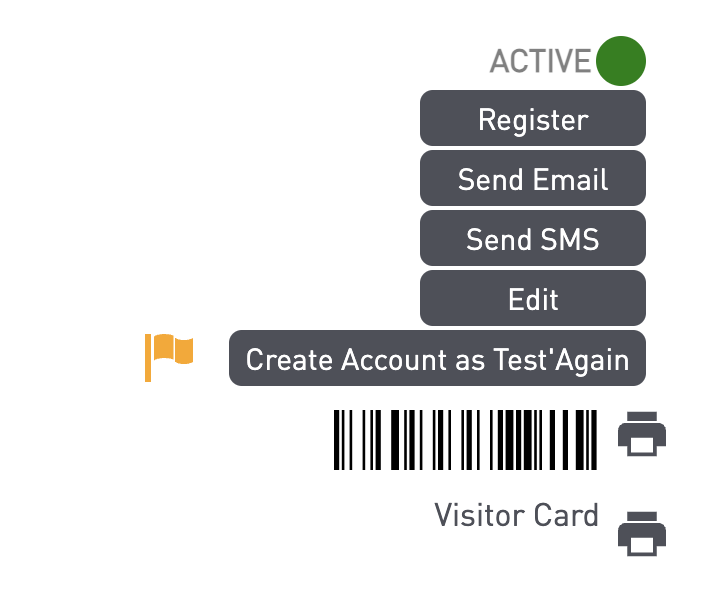
Create the student's user account from their profile:
- Select the "Create Account as" button.
- You can edit their username by selecting the edit option on their profile.
3) Member Logs In and Books Their Class
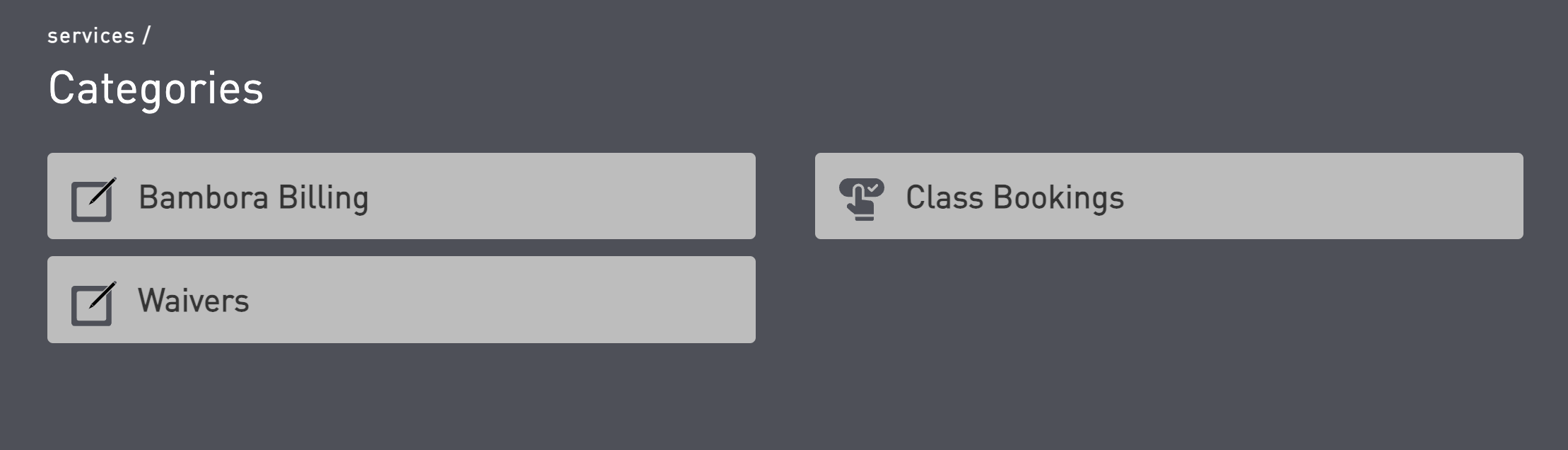
Members can log in to their accounts and see the class booking option. When the student logs in, here is what they will see:
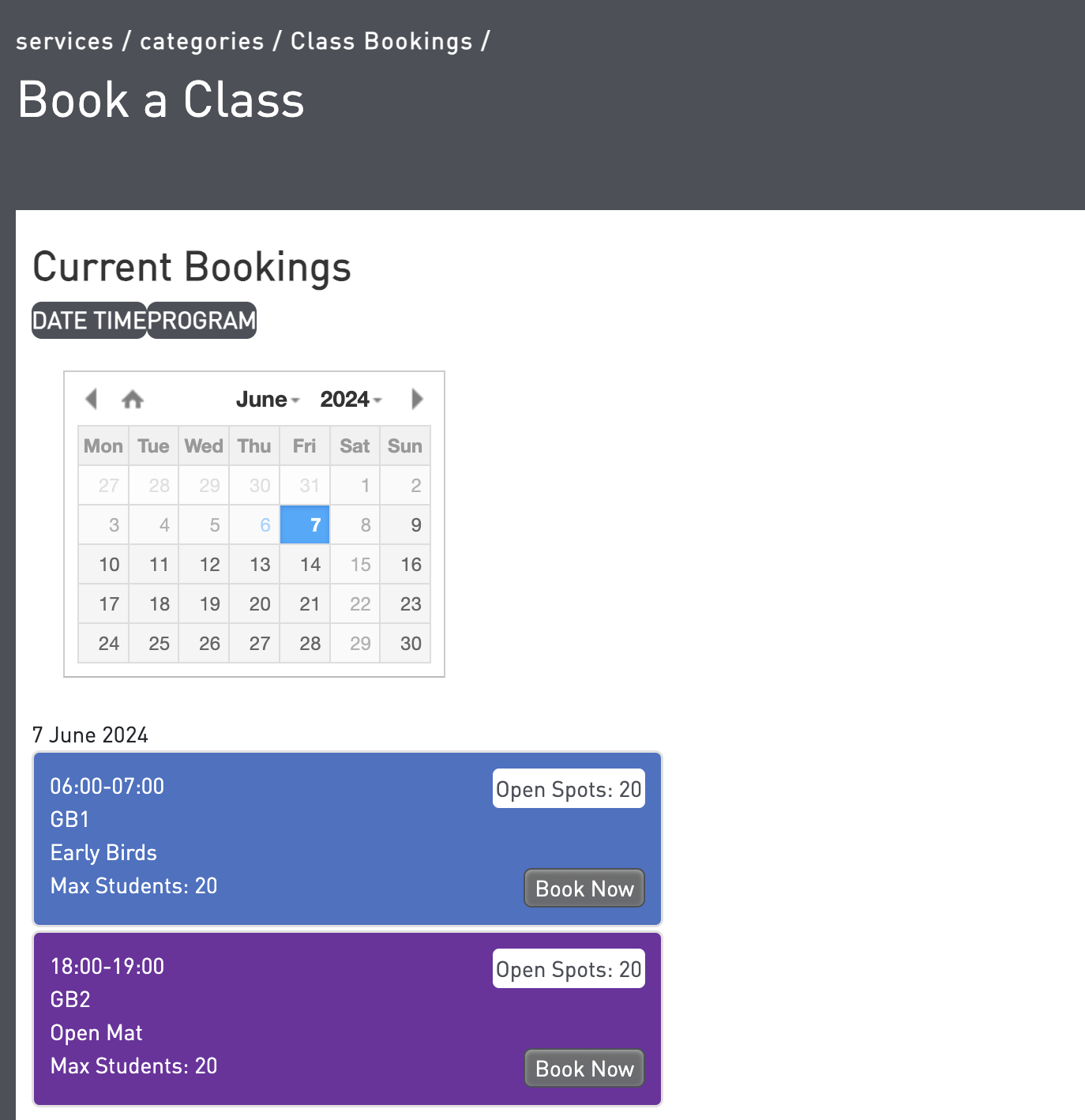
Here's a sample of what the class booking options look like:
Related Articles:
Need Assistance?
For further assistance or clarifications, please contact northamerica@graciebarra.com
You can also schedule a 1-1 consultation: https://graciebarra.link/gbmembers-consultation